
Here's the dirty secret about freelancing: the actual work — the design, the writing, the development — is the easy part. The hard part is everything around it.
Chasing clients for briefs. Following up on approvals. Tracking which version of a file is the latest. Sending invoices and wondering if they'll pay on time. Managing expectations while managing your own anxiety about whether you're being "too professional" or "not professional enough."
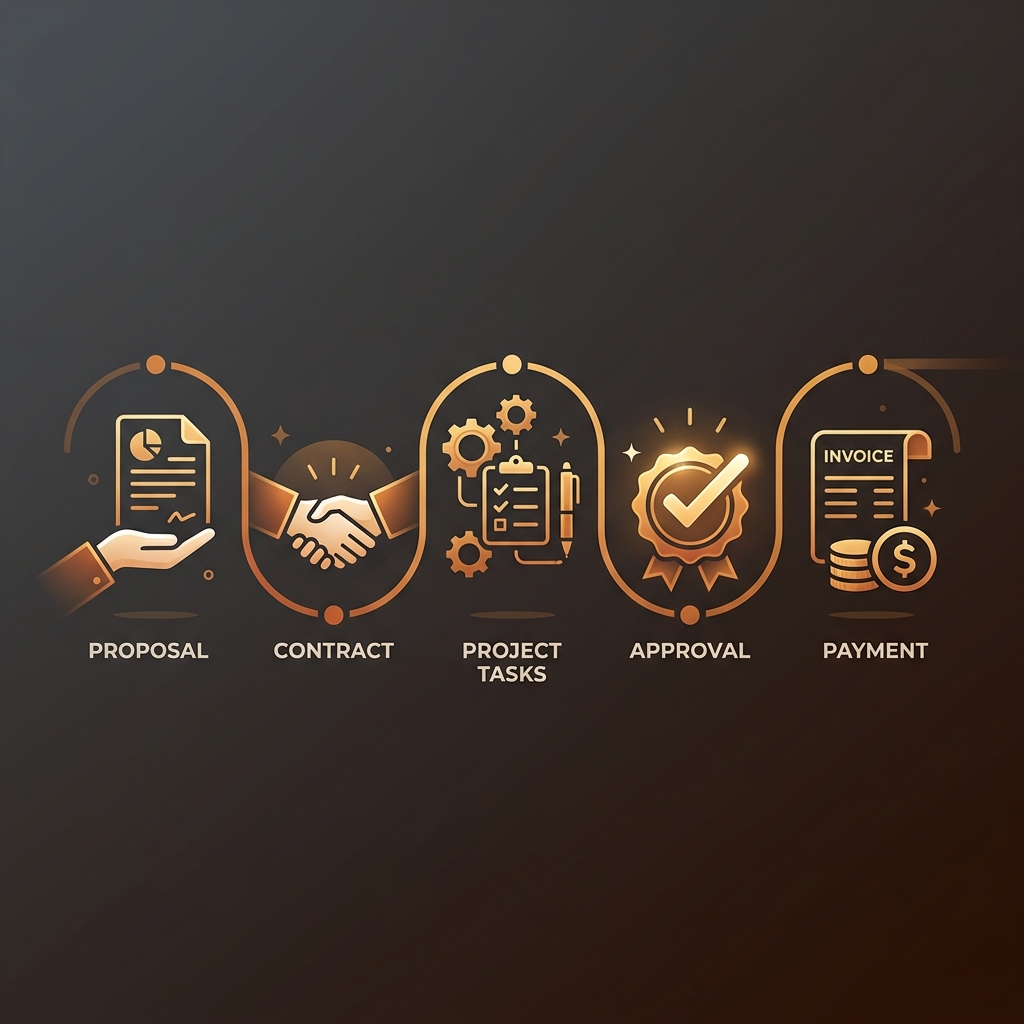
This guide covers the complete client management workflow — from the first conversation to the final invoice — with practical systems you can implement this week. No theory. No "just use a CRM" advice. Real workflows that work for real freelancers.
Phase 1: Before the project starts
Send a proposal (even if they've already said yes)
A handshake deal is not a deal. Even if the client verbally agreed to the project over a video call, send a written proposal that covers:
- Scope of work: Exactly what you'll deliver, in plain language
- What's NOT included: This is just as important. "This project does not include X, Y, or Z" prevents 80% of scope creep
- Timeline: When each deliverable will be ready
- Revision policy: "This project includes 2 rounds of revisions. Additional rounds are billed at $X per hour"
- Pricing and payment schedule: Total project cost, payment milestones, and when invoices will be sent
If you need help structuring proposals, our freelance proposal guide covers the format in detail.
Get the contract signed before any work starts
Not after the first milestone. Not after you've "gotten started so they can see progress." Before. Any. Work. Starts.
The contract doesn't need to be a 10-page legal document. It needs to cover scope, timeline, revisions, payment, and cancellation terms. That's it.
If you're using TryApprove, you can create contracts directly inside your project. Your client signs them with an e-signature in their portal — no DocuSign subscription, no PDF attachments, no "can you print and scan this?"
Collect everything you need upfront
The biggest time waster in freelance projects is the slow drip of missing information. You start designing the website but the client hasn't sent their logo. You ask. They send a low-res version from their Facebook page. You ask for the SVG. They don't know what an SVG is. Two weeks later, you have the logo.
Instead, send an intake questionnaire on Day 1 that asks for everything:
- Brand assets (logos, color codes, fonts)
- Content (copy, images, video)
- Access credentials (CMS login, hosting, analytics)
- References and inspiration
- Key stakeholders and decision makers
- Preferred communication method
Collect it all in one submission, not across 15 email threads. TryApprove has built-in questionnaires that your client fills out in their portal alongside their contract — so you get everything in one place, in one session.
Phase 2: During the project
Organize by deliverable, not by conversation
Most freelancers manage projects through email or Slack, which means project information is organized chronologically (newest message first) rather than by deliverable.
This makes it impossible to answer basic questions like "what's the current status of the homepage?" without scrolling through dozens of messages.
Instead, organize your work into tasks — each task represents one deliverable. Each task has its own status (To Do → In Progress → Needs Review → Approved), its own files, its own feedback, and its own approval status.
This is the core of TryApprove's workflow: create a project, break it into tasks, upload deliverables to each task. Your client sees each deliverable separately and approves or requests changes on each one individually.
Use version control for deliverables
Don't overwrite files. Ever. When you upload a revision, upload it as a new version. This gives you:
- A complete history of every iteration
- The ability to compare old versions with new ones
- Proof of work if a client claims "this isn't what I asked for"
- Rollback capability if a client changes their mind ("actually, v2 was better")
TryApprove tracks version history automatically. Upload v1, v2, v3 — each is preserved with timestamps and revision notes.
Get feedback on the work, not about the work
There's a difference between feedback on a design (useful) and feedback about a design (vague). When your client sends an email saying "I'm not sure about the direction," you've received feedback about the work. When they pin a comment on a specific section saying "this heading needs to match our Q1 campaign tagline," you've received feedback on the work.
The tool you use determines which type of feedback you get. Email produces vague feedback. A visual annotation tool produces specific feedback.
With TryApprove, your client clicks directly on the deliverable to leave feedback. Each click creates a pin, and each pin becomes a threaded discussion. The feedback is attached to the exact element it refers to. No ambiguity, no "which section do you mean?" follow-up calls.
Set clear approval checkpoints
Don't ask "what do you think?" — it invites an endless loop of tweaks and changes. Instead, ask "is this approved?"
Structure your project around clear approval checkpoints:
- Concept/direction approval — "Do you approve this creative direction? If yes, we'll proceed to full design."
- First draft approval — "Here's the full design. Please approve or request specific changes."
- Revision approval — "Here are the changes you requested. Please approve to finalize."
One-click approval buttons (like TryApprove provides) make this explicit. The client clicks "Approve" or "Request Changes." There's no middle ground, no "I need to think about it" state that lasts two weeks.
For more strategies on managing this process, read our guide on how to build a client approval process.
Phase 3: Wrapping up and getting paid
Invoice immediately upon completion
Don't wait. The moment a project milestone is approved, send the invoice. Not tomorrow, not next week. Now.
Every day you delay invoicing is a day you delay payment. And for freelancers, cash flow isn't just an accounting metric — it's rent money.
TryApprove includes built-in invoicing. Create an invoice within the project, send it to your client, and they can view and pay it from the same portal where they reviewed deliverables. One portal, one experience.
Check out our guide on getting paid faster as a freelancer for more strategies.
Track payment status in one place
Don't track invoices in a spreadsheet, billing tool, and your email simultaneously. Having one place where you can see "Invoice #1: Paid, Invoice #2: Sent, Invoice #3: Draft" saves you from the mental load of wondering who owes you money.
TryApprove's invoice dashboard shows total pending, total paid, and the status of every invoice across all your projects.
Close the project properly
When all deliverables are approved and all invoices are paid:
- Send final files in the formats specified in your contract
- Archive the project (don't delete it — you might need to reference it)
- Ask for a testimonial while the positive experience is fresh
- Send a thank-you note (a real one, not a template)
The freelancer's tool checklist
Here's the minimum viable tool stack for managing freelance clients professionally:
| Need | What to use |
|---|---|
| Contracts & e-signatures | TryApprove (built-in) or DocuSign |
| Intake questionnaires | TryApprove (built-in) or Typeform |
| Project & task management | TryApprove (built-in) or Asana |
| Visual feedback & annotations | TryApprove (built-in) or Frame.io |
| Approvals | TryApprove (built-in) |
| Invoicing | TryApprove (built-in) or FreshBooks |
| Client portal | TryApprove (built-in) |
You'll notice TryApprove covers all seven needs in one platform. That's the point. If you want to learn more about replacing multiple tools, read how to run your agency on one platform.
Common freelancer mistakes
Scope creep through "one more thing"
Your client approved the homepage design. Then they ask "can you also quickly do the footer?" Then "actually, can we add a blog page too?" Each request is small. Collectively, they double your project scope.
The fix is simple: refer to the contract. "The project scope includes the homepage and three inner pages as agreed. I'd love to add a blog page — I'll send a quick quote for that as an add-on."
Not setting boundaries on communication
"I'll just check Slack before bed" turns into midnight message threads. Set communication hours in your welcome document ("I respond to messages between 9am-5pm EST, Monday through Friday") and stick to them.
Undercharging because you're afraid of losing the client
If a client walks away because of your pricing, they weren't your client. Our pricing guide for design services and rate calculator can help you set rates that actually work.
Start managing clients like a pro
TryApprove is free for up to 2 projects — enough to manage your next two client engagements with contracts, questionnaires, deliverables, approvals, and invoices all in one portal.
Set it up in 5 minutes. Send your client a magic link. Watch them approve your work in one click.